







A Useful Guide To Use An Android POS ALL-IN-ONE Machine - GALAXY TOUCH 6
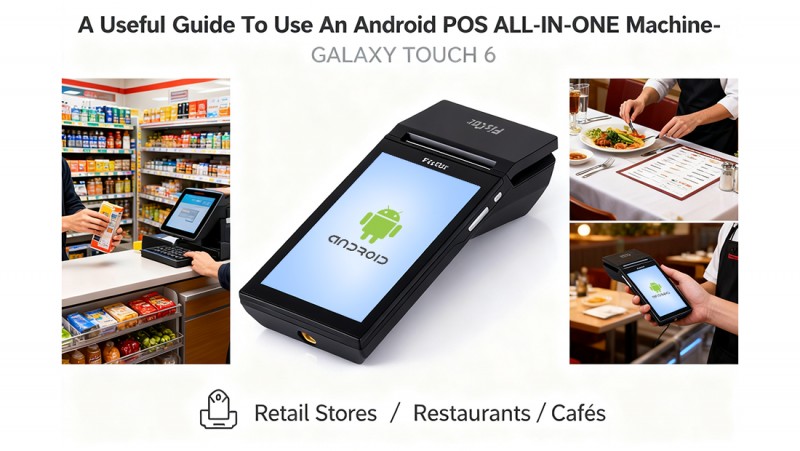
Thank you for choosing our new generation Android POS ALL-IN-ONE GALAXY TOUCH 6. It is high performance pos all-in-one guaranteed by our technology and quality. It brings convenient and safe data processing to your business daily life.
Here we would like to guide you how to use this product.
1. Initial Setup instruction
1.1 Power On & Off
•Turn off machine: turn the power switch to “OFF”;
•Open the printer cover: one hand fixed machine, put the thumb of the other hand in opening groove and upward force to open the printer cover.
•Close the printer cover and tear up sheet of paper
Note: Do not pull out the remaining paper in the opposite direction of the paper feed!
1.2 Power On & Off
•Connect the machine to 9V 3A power Adapter.
•Long Press the side power button to power on/off machine.
•If need to completely disconnect power, then you need to open cabinet to take out lithium battery.
1.3 Interfaces
GALAXY TOUCH 6 has one RS232, one USB device and Ethernet.
The RS232 port is used to connect PC drivers. This port cannot be connected to the scanner.
Please note that this port has no power output.
The USB port is only used for PC communication.
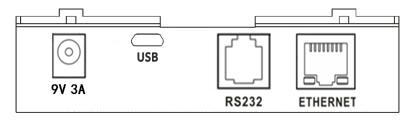
The USB OTG:USB Host ports are used to connect external keyboard, scanner, memory sticks, printers, etc.
2. Android operating system
Is an Android mobile POS that’s simple to use with an intuitive interface. It is an ideal way for businesses such as food trucks, home and repair services, market stalls, etc. to the upper left of the interface, put the APK into "Delete ", select OK, the APK will be uninstalled
Software Installation
Put the APK to be installed into the U disk and insert the USB 2.0, we will see the contents of the U disk in Files, click on the APK, and choose to install
3. Non Fiscal App Demo Testing
On the desktop is installed a Non Fiscal App Demo, which is a virtual keyboard developed by Fiscat with four functions for user internal testing:
1.printer 2.printer Styles 3.Display 4. Custom Test.
3.1 Printer
In this part, User can check printer status, do initalize, test drawer, and do four kinds of image prints by menus, QR code and Barcode format can be set as well.
3.2 Printer Styles
User can set printer styles by the menus, which including Char spacing, Line Spacing, Density, Position, Align, Underline, Font Size, Rote and Font Styles.
3.3 Display
User can set Main screen or custom screen by the menus, which including Initialze, Clean (clear all), Clear line, Display Cursor, Reverse, Brightness, Scroll mode...etc.
3.4 Custom Test
User can input any text to print, or choose 'Hex Command' to do customized info, the Hex commands please refer to <<fiscat LCD&Printer Command Set v1.01.pdf>>
4. Daily Operations
4.1 First-Time Setup (Skip if pre-configured)
•Select language → Connect to Wi-Fi/Ethernet.
•Log in to the Google Play Store (for app downloads).
4.2 Launch POS App
•Open your POS software (e.g., Square, Loyverse, Hike, Oracle...).
•Log in with employee credentials or QR badge.
4.3 Processing Sales, Managing Orders (Restaurants/Retail), and Back-Office Functions (inventory management, sales, reports..)
User can check the details functions by it's App.
The GALAXY TOUCH 6 do not contain any components, which can be serviced or repaired by the user. Please have all maintenance performed by a qualified FISCAT dealer. Unauthorized manipulations may lead to a loss of warranty.
Any confused are very welcome to contact us, we are always here with you!